Insights - See Where the Money Went
Kittysplit can now tell you what you spent on what. Open the new Insights tab in a Super Kitty and you get your expenses added up per category: so much for the house, so much for eating out and, yes, that much for petrol. It’s on the web and in the iOS and Android apps.
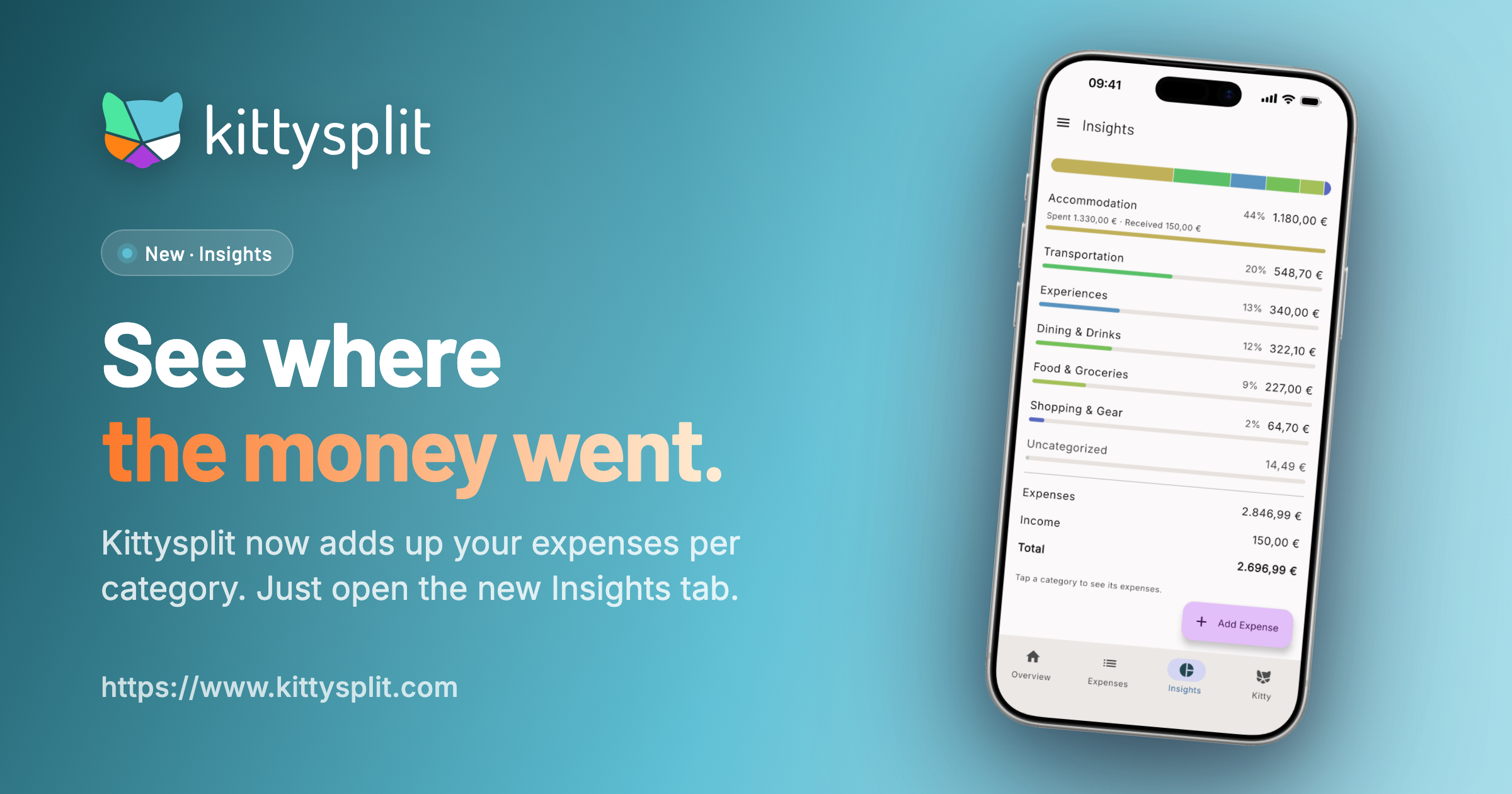
When we launched expense categories in February, all you could do with them was filter your list of expenses. We said charts would follow, and then your emails started coming in. A lot of them asked the same thing: I can filter by “Food & Groceries”, so why do I have to add up the result myself?
We didn’t have a good answer. A Kitty has always known who owes whom. What it couldn’t tell you is where the money went, and that’s the question that comes up on the drive home. One of you put it better than we could: a breakdown would be nice so you can say “Wow, we spent more on parking than on lodging. Let’s never go there again.”
What you get
Here’s a week in Sardinia for four people:
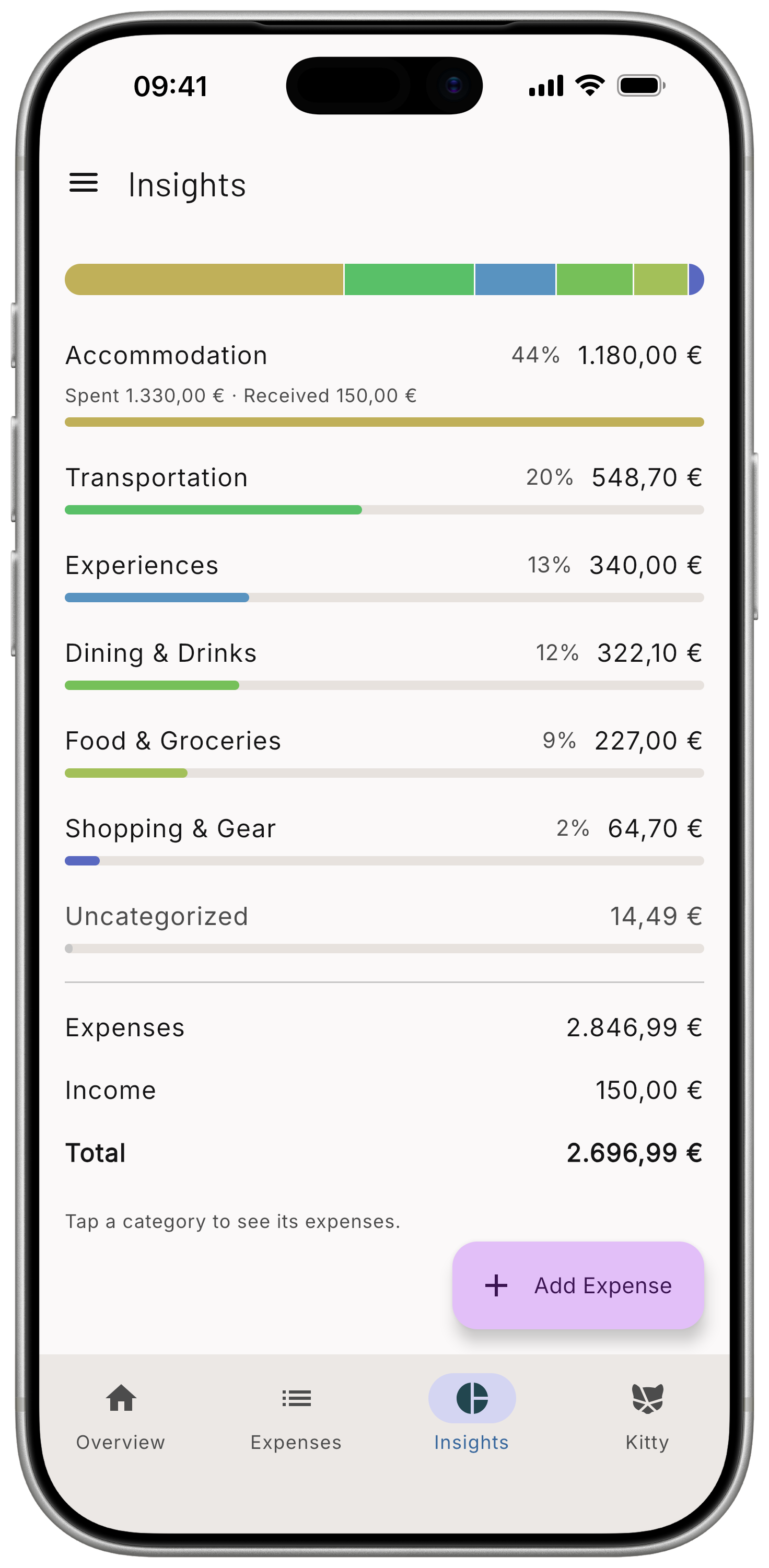
Every category that has expenses in it gets a row, with the biggest one at the top. You see the amount, its share of the total and a bar to compare it with the others. The strip above the list is the whole Kitty at a glance.
In this one, the holiday home ate 44% of the budget, which surprised nobody. That the boat tour and the kayaks cost more than a week of restaurants was news to everyone, though.
Incomes count too. If money came back in a category, it’s taken off. Paul paid €1,330 for the house, deposit included, and got the €150 deposit back at the end. So accommodation shows up with the €1,180 it really cost, and both numbers are in the small print below it.
Tap a category to see what’s in it
Curious what the €322.10 for “Dining & Drinks” was made of? Tap the row and you get exactly those expenses.
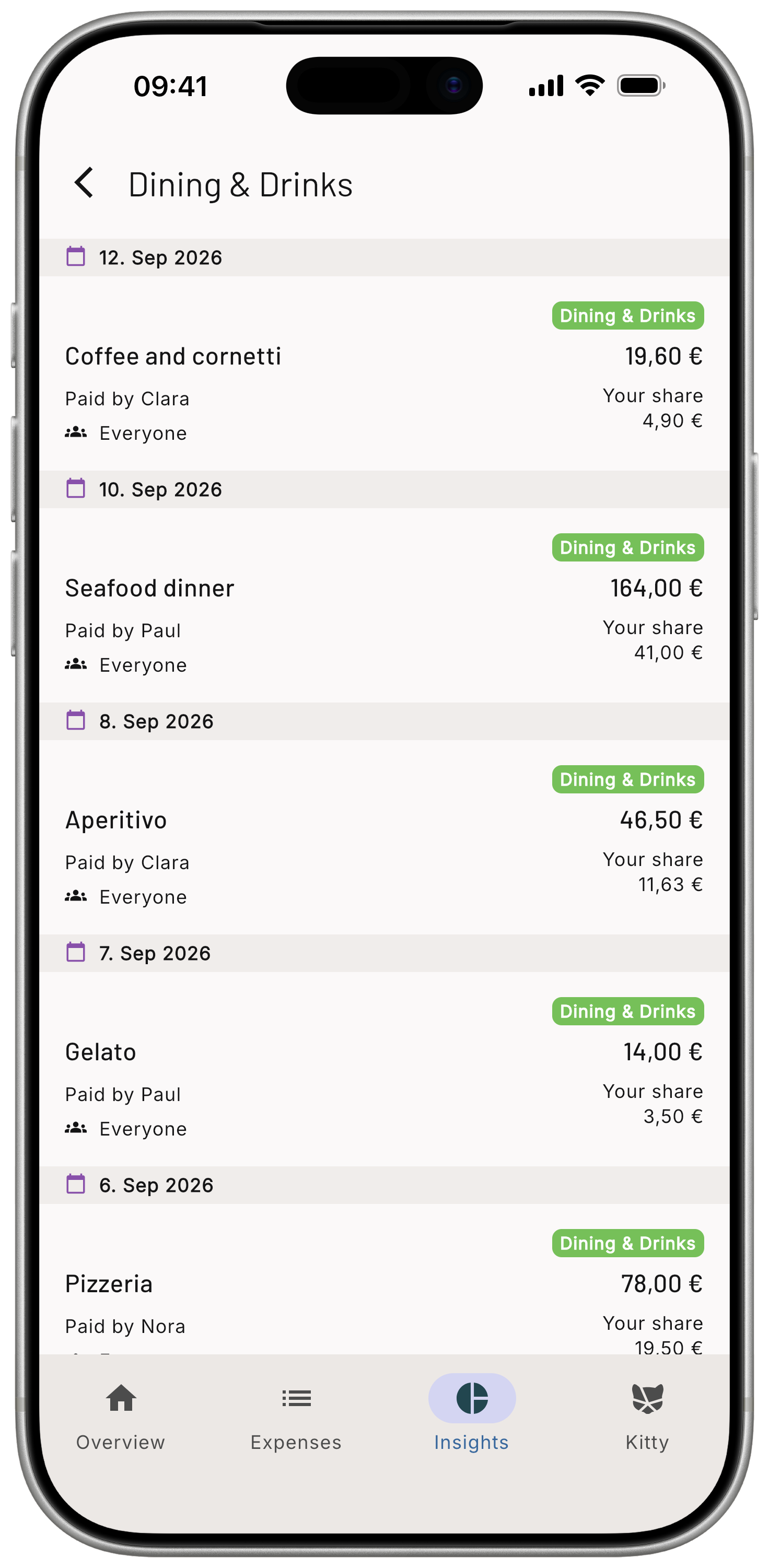
On the web it works the same way: click a category and you land in your expenses list, filtered to it.
Expenses without a category end up in a row called “Uncategorized” at the bottom. They count towards the total but stay out of the percentages. You can tap that row too, and it’s the quickest way to find the stragglers and give them a category. Once they have one, they move to where they belong.
A quick look on the overview
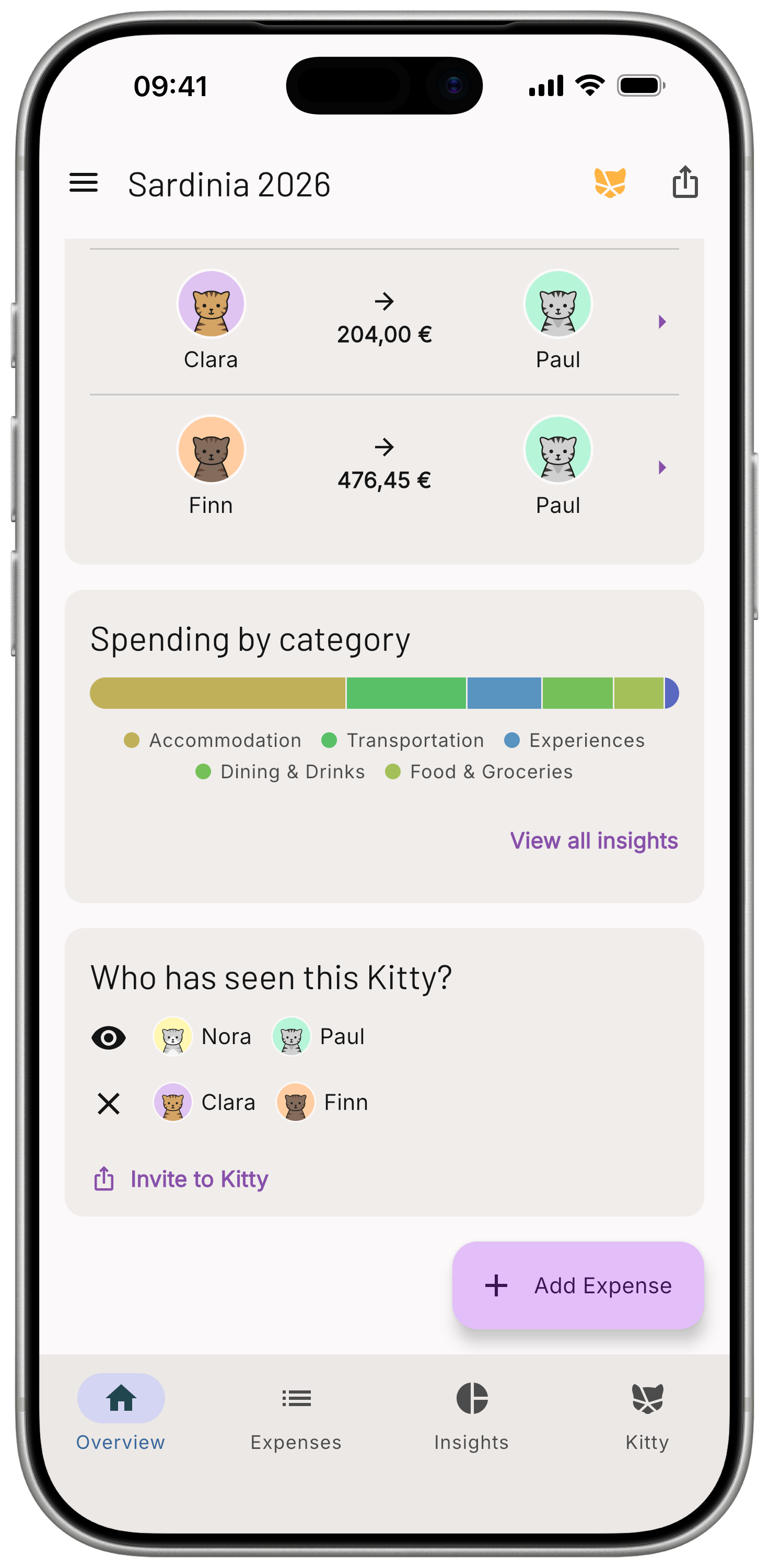
You don’t have to go looking for any of this. The overview of your Kitty has a new card with the same coloured strip and your five biggest categories. “View all insights” takes you to the full list.
Where to find it
Insights are part of a Super Kitty. In the apps it’s the new tab at the bottom, between Expenses and Kitty (you need version 2.4.0 or newer). On kittysplit.com you’ll find “Insights” in the menu of your Kitty.
It only works if your expenses have categories, of course. So pick one when you add an expense. It’s one tap, and since the spring there are 14 to choose from: “Education & Work” and “Celebrations & Events” are new.
Right now Insights add up the whole Kitty from the first expense to the last. That’s what you want for a trip. For a flat share that has been running for three years, you’d rather know what you spent on groceries last month. That’s the next thing we want to build.
Happy splitting! 🐱✨